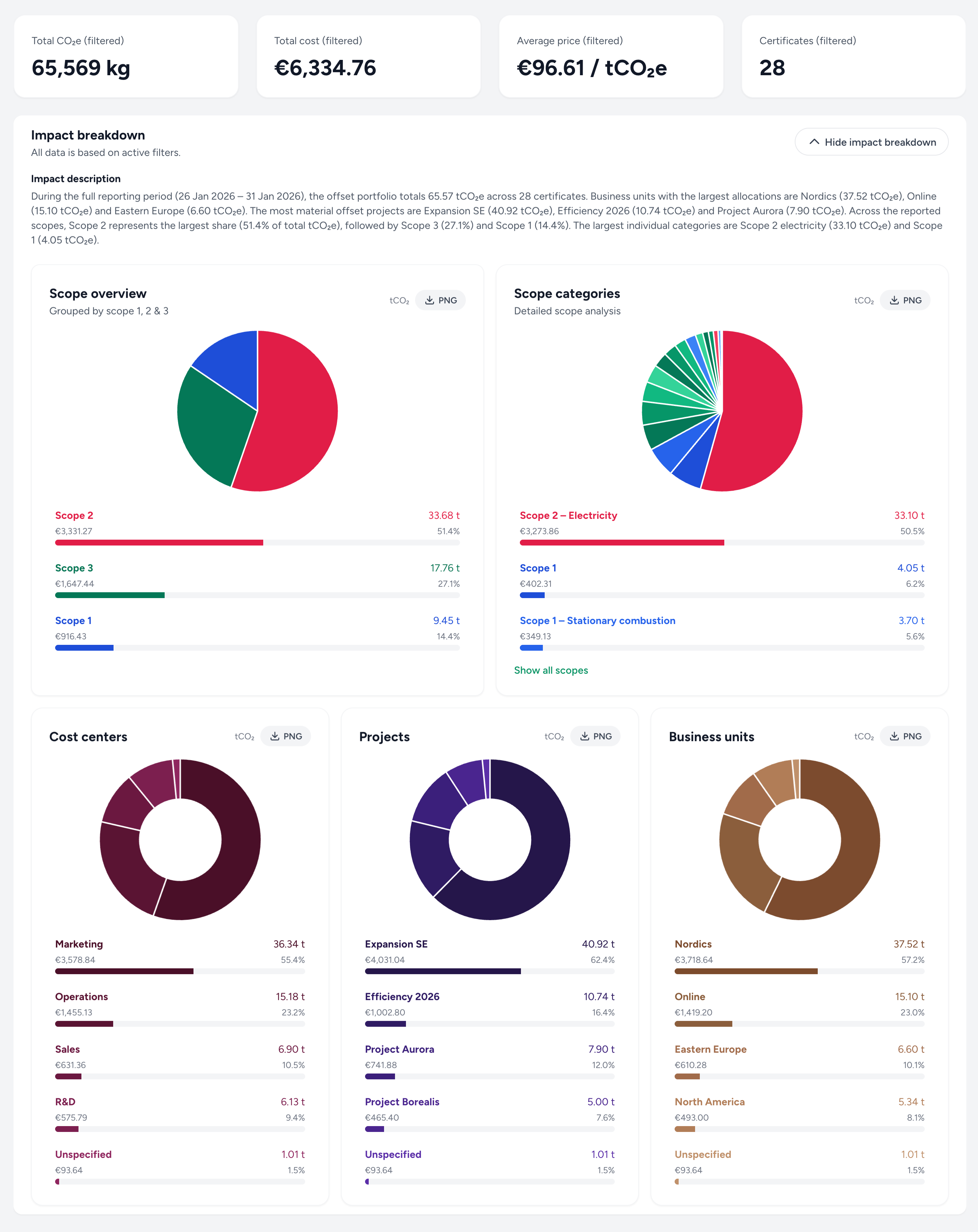
Make your climate spend easier to reconcile by structuring purchases the same way you run the organisation.
As your organisation scales, it becomes harder to connect climate activity to budgets and responsibility. Allocation settings let you structure purchases using familiar dimensions like cost centers, projects, business units, and scopes—when enabled for your organisation.
Allocation settings live under Organisation in the Minpact dashboard. If your organisation has allocation dimensions enabled, you will also see pages for cost centers, projects, and business units.
If you track emissions by Greenhouse Gas Protocol scopes, you can enable scope tagging for certificates. In Organisation settings, turn on “Use scopes 1, 2 & 3”. Once enabled, a Scope filter and Scope allocation field become available in the offset ledger.
Allocations can be updated directly on each certificate in the offset ledger. Depending on your role and access, some fields may be disabled or show a limited set of options.
Allocation changes are recorded in the audit trail so you can review what changed over time.
You may be asked to sign in to access these pages.
Once allocations are in use, the audit trail helps you review changes over time across certificates, approvals, and allocations.
Open audit trail Min
Min